How to Promote a Member to the Admin or Moderator Role
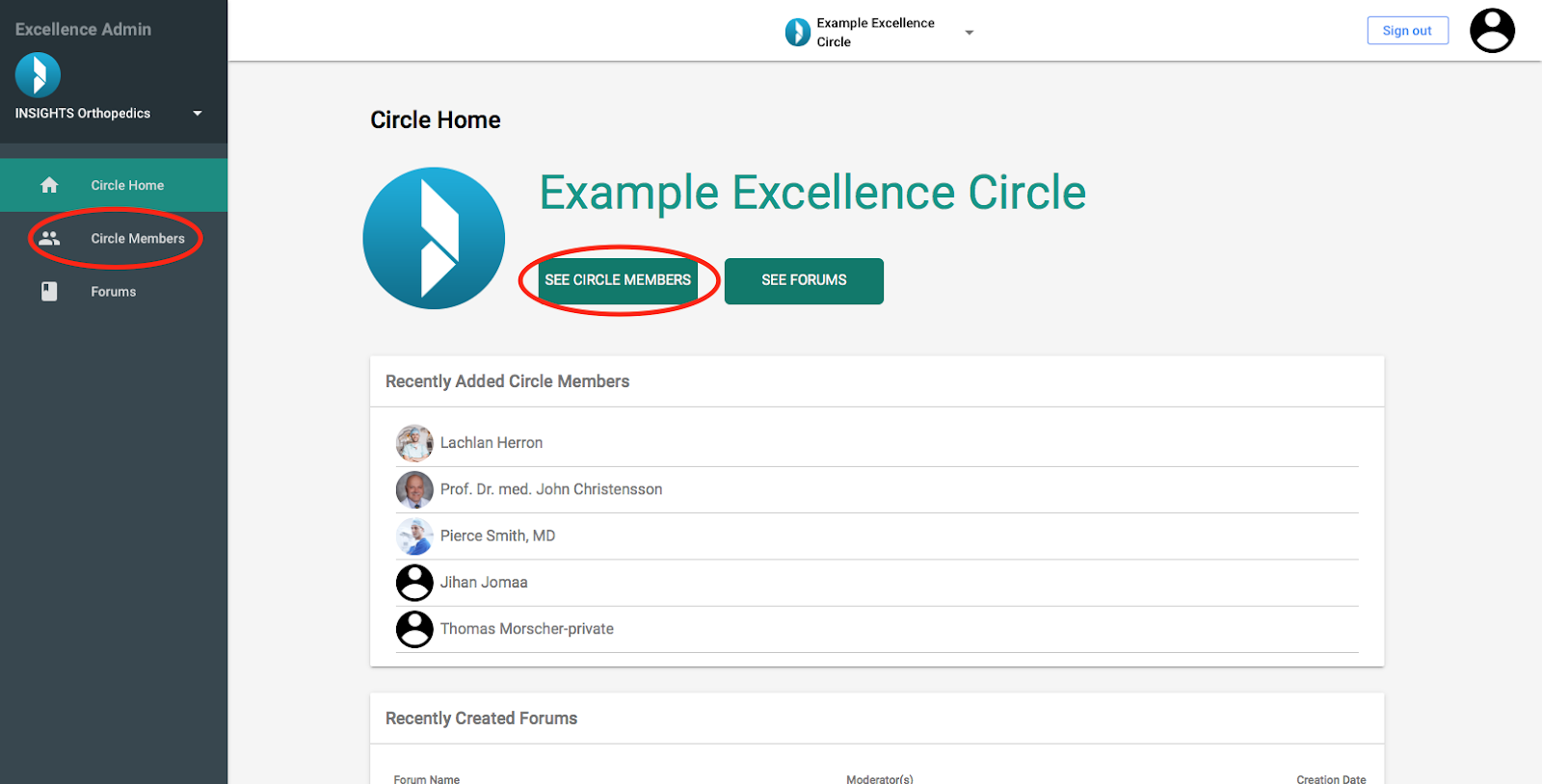
Log in to the INSIGHTS Excellence Console https://console.insights.md/
- Click on the “See Circle Members” Button or the “Circle Members” tab in the side bar
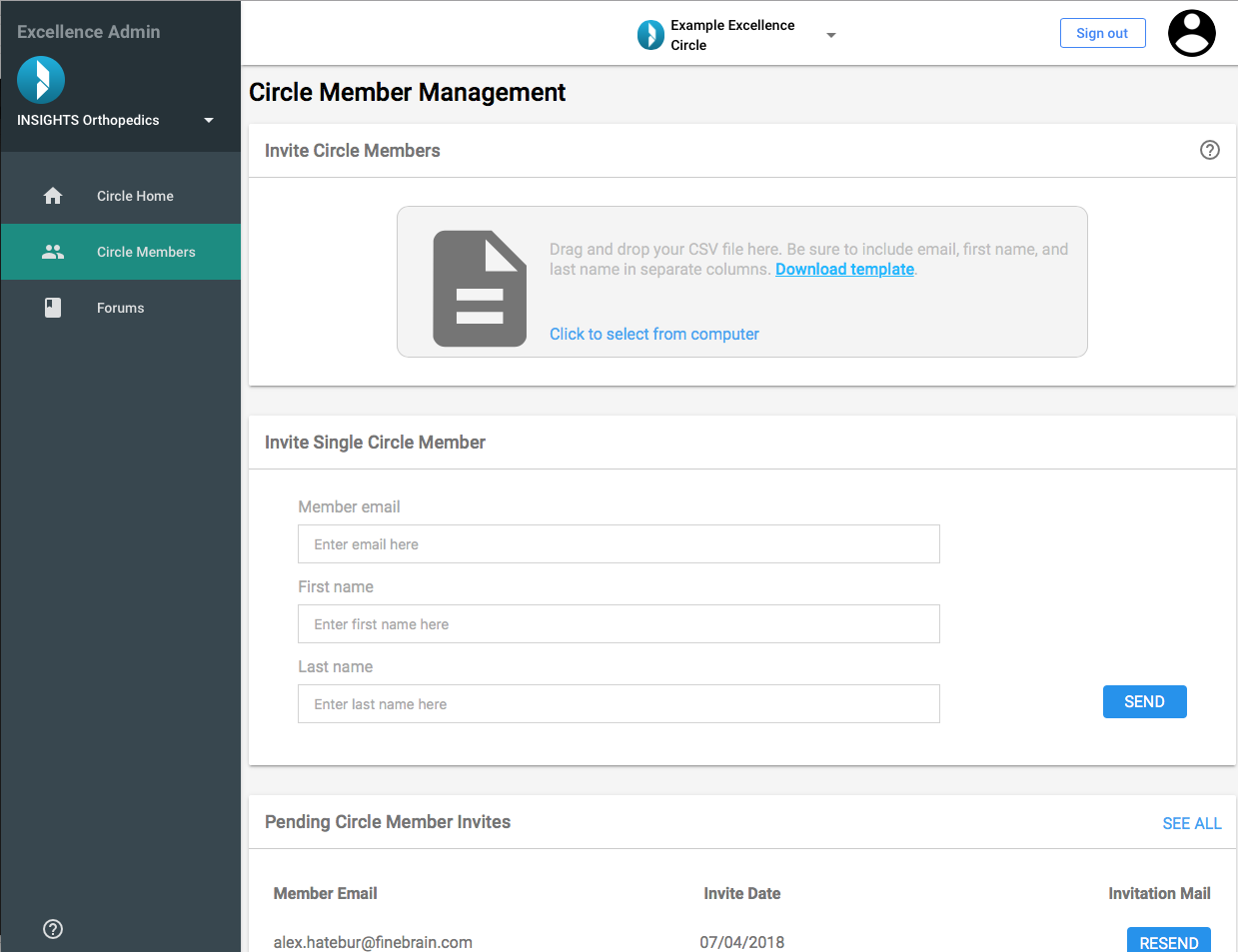
You will be directed to the Page “Circle Member Management”
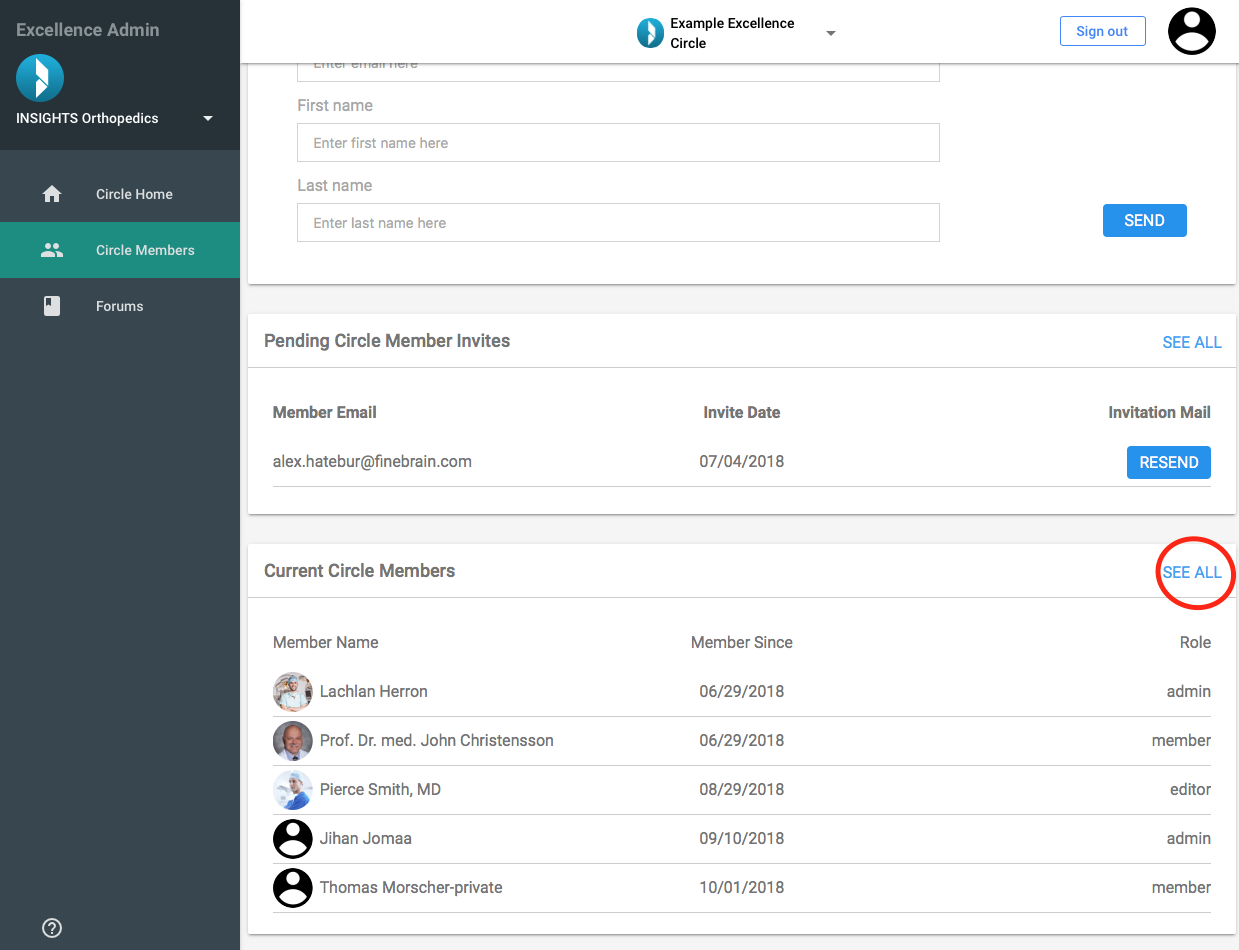
- Scroll down the page until you find the “Current Circle Members” card
- To see all the members of your Excellence Circle, click on “SEE ALL”
Click on the member you would like to edit
You will be directed to the “Member Profile” page
Promote the member to the desired role by selecting the appropriate checkbox
Selecting “Admin” will allow the member to access the Console and make changes to the Excellence Circle
- Selecting “Moderator” will allow the member to create Forums for your Excellence Circle and add content to those Forums
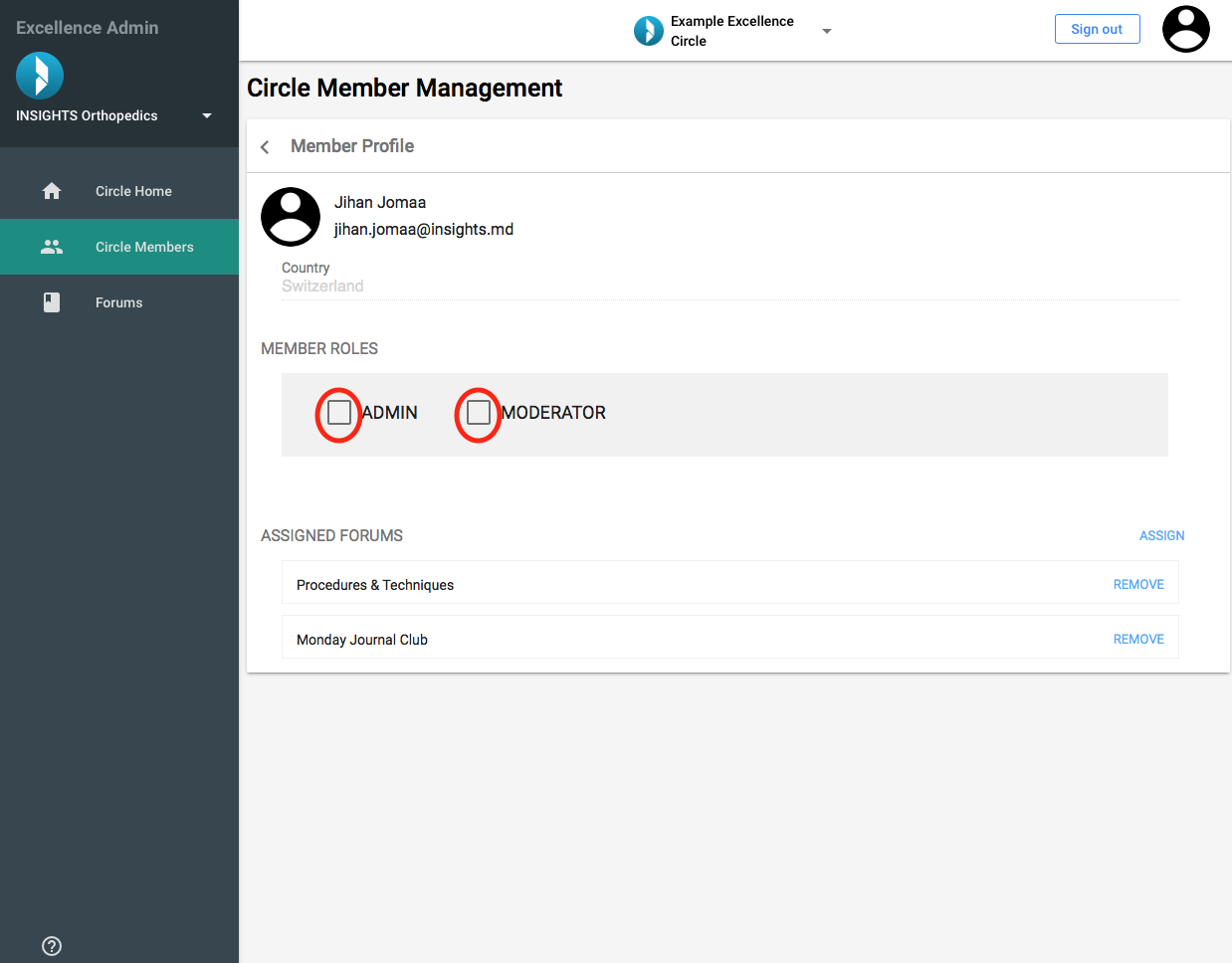
*Make sure to assign Forums for the member to moderate if you are promoting them to the Moderator role